Content History
Page summary:Content History stores previous document versions so editors can compare and restore earlier states from the Content Manager. This documentation explains how to browse and restore workflows for quick rollback of mistakes. Versions are only created for content edited in the Content Manager, and are kept for 14 days on the Growth plan and 30 days on the Enterprise plan.
The Content History feature, in the Content Manager, gives you the ability to browse and restore previous versions of documents created with the Content Manager.
A version is only created when a document is modified through the Content Manager in the admin panel. Content modified in any other way does not appear in the Content History of the document: this includes the REST API, the GraphQL API, the Document Service API, lifecycle hooks, cron jobs, and the strapi import and strapi transfer commands.
Content History is not a record of every change made to a document. Documents written programmatically, such as those created by a migration script or an integration calling the REST API, have no corresponding version, and a document can therefore differ from the most recent version listed in its Content History.
To trace the actions performed by users of the admin panel, use Audit Logs.
Configuration
The only configurable aspect is how long versions are kept before they are deleted.
Content History is not a permanent archive. Versions are deleted automatically: a job runs once a day, at midnight, and deletes every version older than the retention period, counted from the creation date of each version.
The retention period is defined by the license of your plan:
| Plan | Default retention period | Maximum retention period |
|---|---|---|
| CMS Growth | 14 days | 14 days |
| CMS Enterprise | 30 days | 90 days |
The retention period cannot be extended on the Growth plan. Contact the Strapi sales team to upgrade to the Enterprise plan, which offers 30 days by default and can be extended up to 90 days.
Growth projects that were already using a 30-day retention period when the 14-day default was introduced keep it.
Versions deleted by the retention job cannot be recovered from the Content History interface.
Code-based configuration
The retention period can be shortened, but never extended, with the history.retentionDays parameter of the /config/admin file. When both the license and the configuration file define a value, the lower of the 2 applies.
- JavaScript
- TypeScript
module.exports = ({ env }) => ({
  // … other configuration properties
  history: {
    retentionDays: 7,
  },
});
export default ({ env }) => ({
  // … other configuration properties
  history: {
    retentionDays: 7,
  },
});
There is no equivalent setting in the admin panel: the retention period can only be shortened from the /config/admin file.
Usage
Path to use the feature: Content Manager
From the edit view of a content type: click (top right corner) then Content History.
Browsing Content History
With Content History, you can browse your content through:
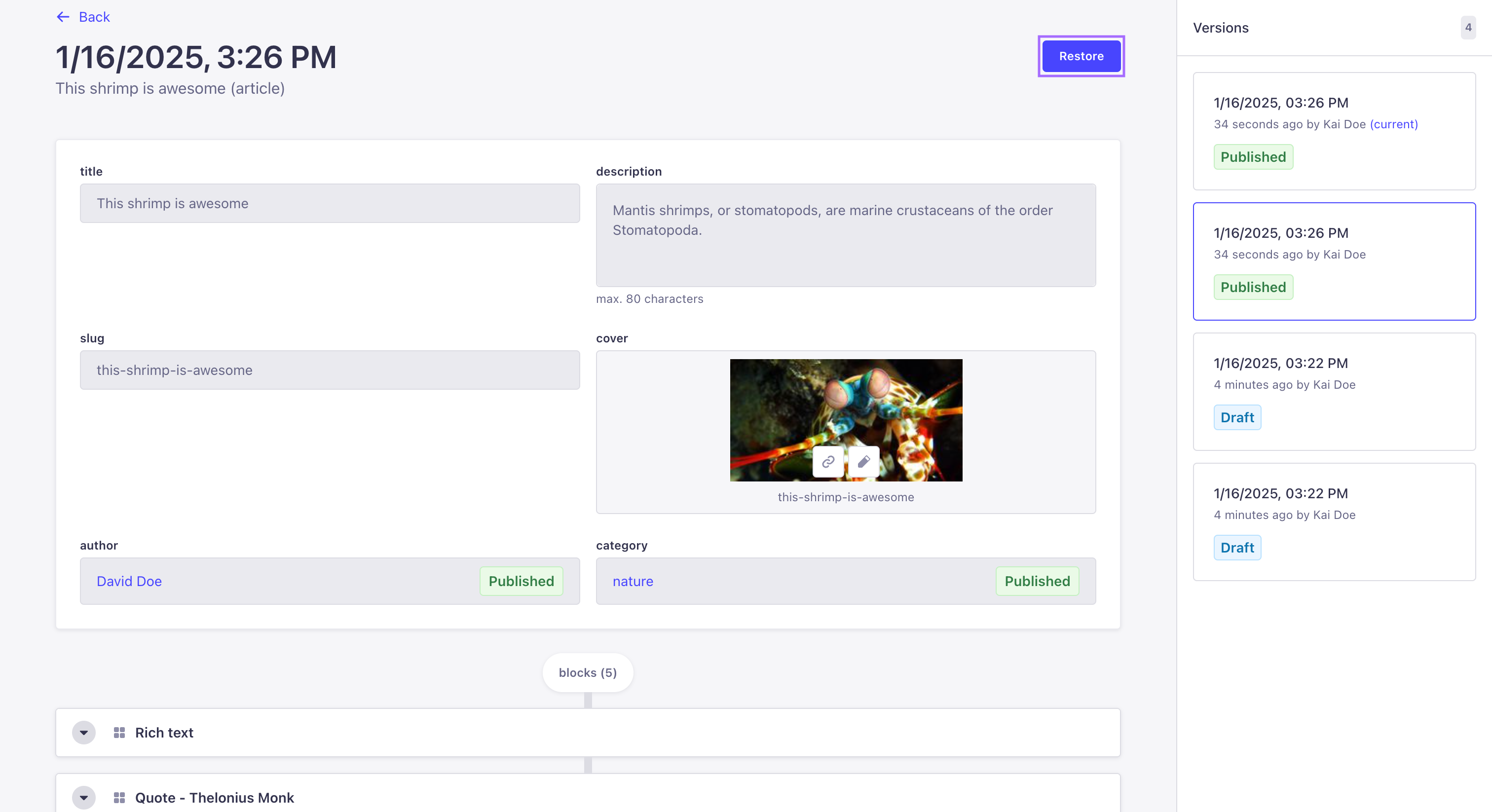
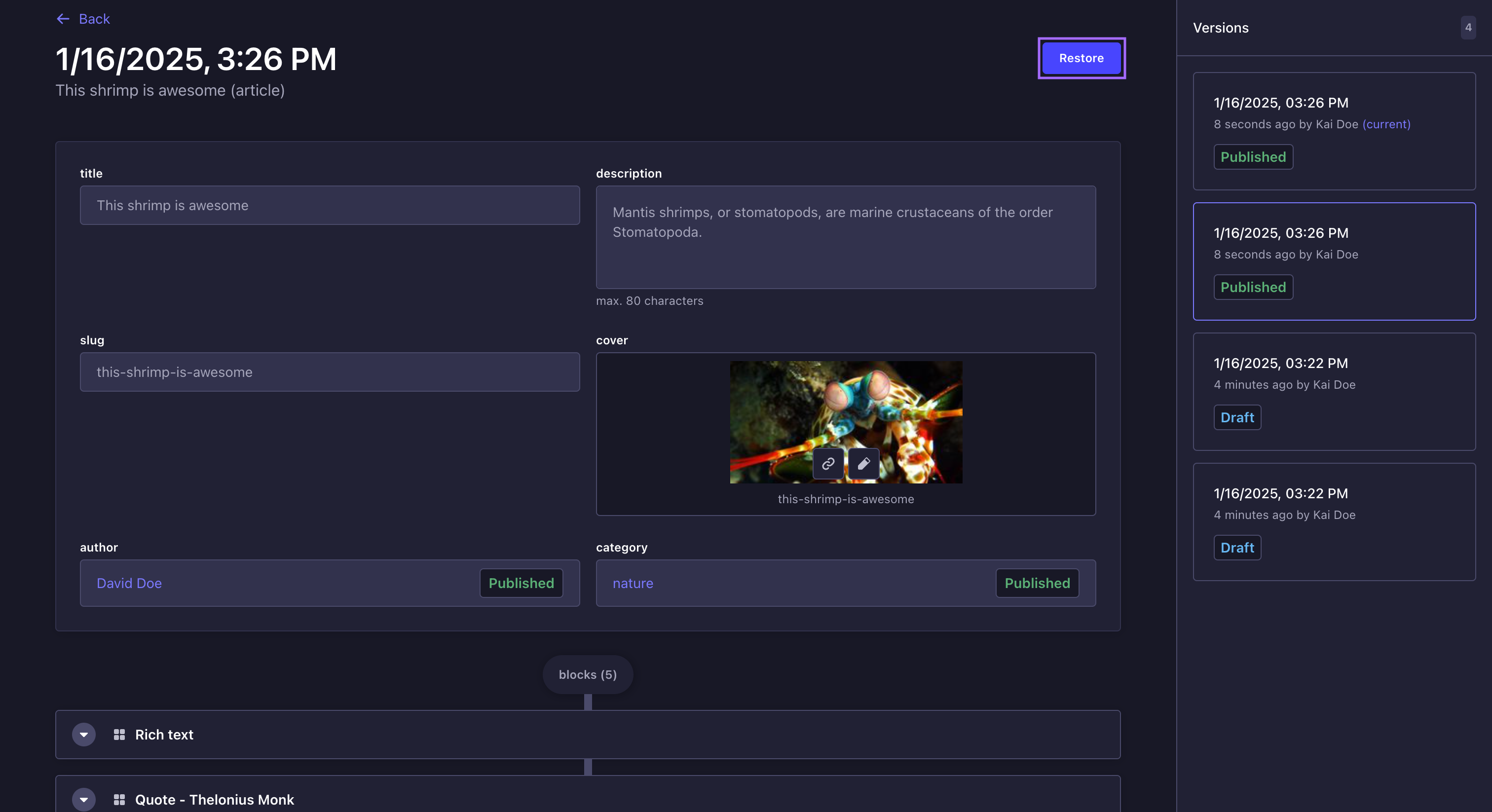
- The main view on the left, which lists the fields and their content for the version selected in the sidebar on the right.
- The sidebar on the right, which lists the total number of versions available, and for each version:
- the date and time when the version was created,
- the user who created it,
- and whether its status is Draft, Modified, or Published (see Draft & Publish for more information about document statuses).
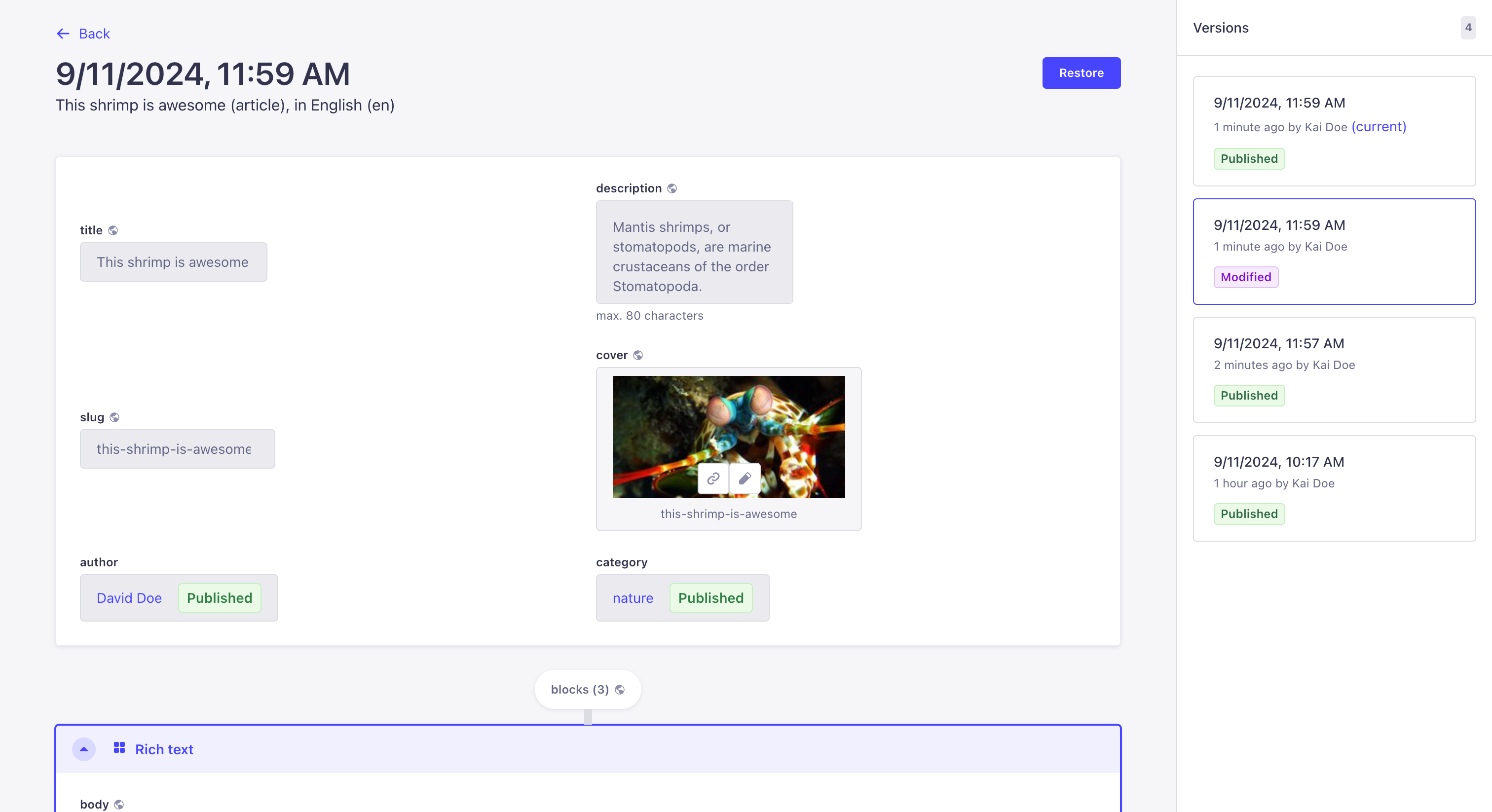
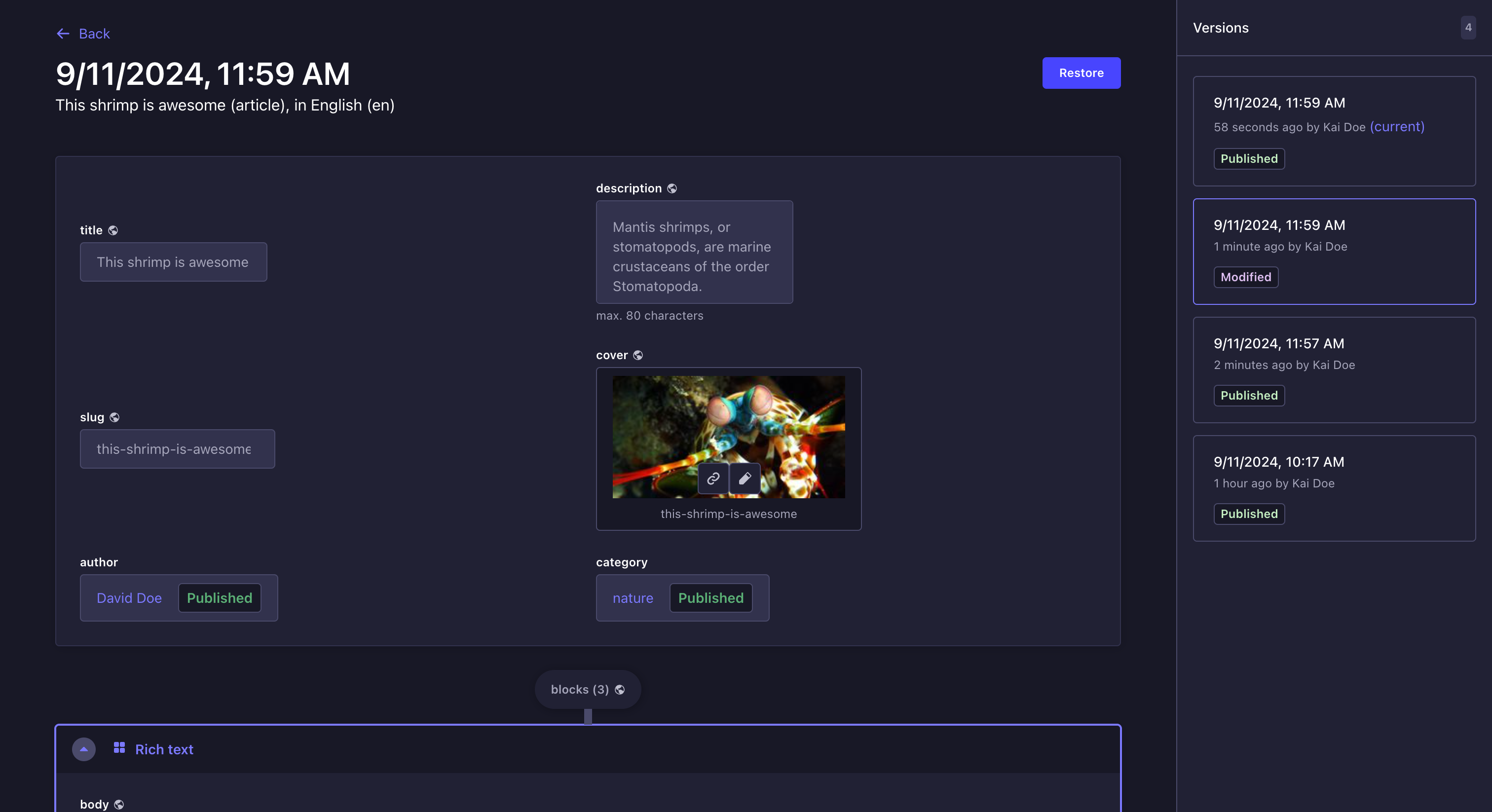
The main view of Content History clearly states whether a field was inexistent, deleted, or renamed in other versions of the content-type. Fields that are unknown for the selected version will be displayed under an Unknown fields heading below the other fields.
Restoring a previous version
You can choose to restore a previous version of a document. When restoring a version, the content of this version will override the content of the current draft version. The document switches to the Modified status and you will then be able to publish the content whenever you want (see Publishing a draft).
- Browse the Content History and select a version via the sidebar on the right.
- Click the Restore button.
- In the Confirmation window, click Restore.
If the Internationalization (i18n) feature is enabled for the content-type, restoring a version with a unique field (i.e. a field whose content is the same for all locales) will restore the content of this field for all locales.